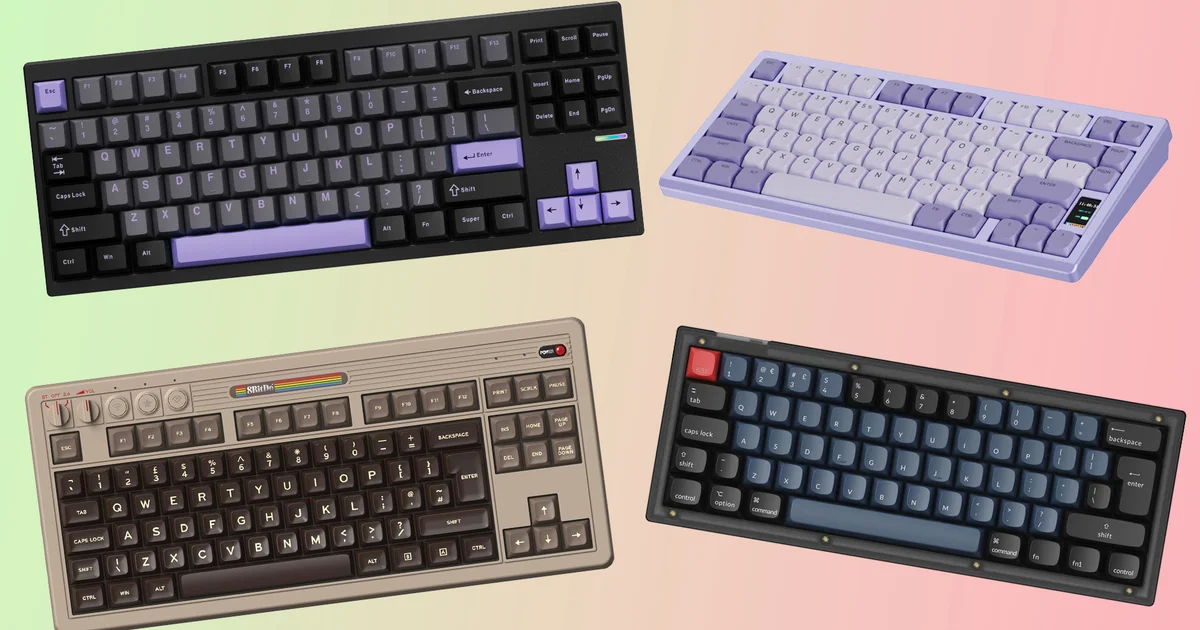
From time to time, we like putting brand-new mechanical keyboards through their paces—looking at where the market is headed and spotting features or design details that could convince you to retire your current board. Whether you’re just getting started with mechanical key layouts or you’ve been using them for years, you should find some genuinely interesting choices in the list below.
The reviews in this round focus on budget-conscious options priced from $80 to $139, mixing familiar names with a few brands that may be less well known. Keyboards come in several sizes here, including tenkeyless layouts and even more compact builds. As with any truly strong mechanical keyboard, there’s also plenty of room to personalize your setup—something you’ll notice as you keep reading.
Mchose GX87 Ultra review: A TKL keyboard that could potentially outshine Keychron

Purchase:
The Mchose GX87 Ultra is, hands down, one of the most impressive mechanical keyboards I’ve handled in years—and it also stands out as one of the best deals on the market right now. Here’s what you get: a CNC-machined aluminum frame? ✅ Hot-swap support? ✅ Tri-tone PBT keycaps? ✅ Lubed linear switches? Yes, all of that is included. And how about 2.4GHz wireless plus Bluetooth? Yes, those too.
This isn’t hyperbole—the GX87 Ultra includes everything you’d expect from a high-end mechanical keyboard, and it carries it out with impressive consistency. It’s sold in black/purple, white/black, or silver/white colorways, and my review sample is the black-and-purple version. It looks fantastic, with that understated purple tone that brings to mind the familiar SteelSeries 7G vibe, especially Yvonne from LTT’s model. The milled aluminum base feels on par with Keychron materials, with no noticeable deck flex and a solid amount of heft. Another standout is that you can swap the GX87’s top cover with other compatible Mchose options in different colors. This approach uses ball bearings and magnets and feels much like the design philosophy behind the Drop CSTM65 from the previous set of reviews. On top of that, the underside has a pleasing weight to it, which adds a touch of polish.
The TKL layout is a practical sweet spot for people who don’t want to go as unconventional as a 65% or 75% board, while still getting the benefits of a dedicated function row, a navigation cluster, and arrow keys. Black, gray, and purple PBT keycaps dress up the look and feel great during use. The only thing that gives me pause is that Mchose hasn’t printed the secondary key functions on the corresponding keycaps, so you’ll need to rely on memory for tasks like Bluetooth pairing or adjusting the RGB behavior. The board uses the ANSI layout, including the single-height Enter key that US users will recognize—so UK/EU users may find it a bit unfamiliar.
This Ultra version uses switches Mchose calls ‘Vintage White’. They’re 45g linear switches with POM stems and factory lubrication for a smoother feel, and they offer 3.5mm total travel. I usually lean toward heavier soft-tactile options such as MX Purples or Drop Holy Pandas, but these Vintage Whites caught me off guard—in a good way. They’re exceptionally smooth under your fingers and respond cleanly with that lighter actuation. With the lubrication in place, the GX87 Ultra also produces great acoustics—something enthusiasts might describe as ‘creamy.’
If the Vintage Whites don’t match your preference and you’d rather swap switches, the GX87 Ultra is hot-swappable. It’s also gasket-mounted, with a healthy amount of foam and silicone sound-dampening material inside—helping prevent case rattle or ping for a noticeably better overall sound.
The GX87 Ultra supports three connection methods: Bluetooth, 2.4GHz wireless, and USB-C when used in wired mode. Pairing is fairly simple—just make sure you consult the manual for the specific key combinations needed. I had no problems moving between my main Windows PC and my MacBook Pro for work tasks. It also includes an 8000mAh battery, among the largest I’ve seen in a mechanical keyboard, which should translate into excellent day-to-day endurance.
You’ll also get RGB lighting, both under the keycaps and on the small indicator located beneath the Page Down key. Because the keycaps and switch housing feel sturdy, the light leans more toward a smooth underglow than a full-on disco effect—yet it still looks lively. The lighting is addressable as well, since the GX87 Ultra supports QMK firmware flashing and VIA for easier customization. During my tests I went with VIA, and it proved to be a capable tool, letting you handle key remapping, macro creation, and RGB adjustments.
Next, let’s talk pricing. This Ultra model costs $139. Considering everything included, it looks like excellent value—especially when you compare the feature list. I can’t think of many other keyboards that offer this much at a price this low, other than the obvious Keychron Q1 Pro, which is a full $70 more than this GX87 Ultra.
And if the $139 asking price feels a little high, there’s also a Lite version
available for $89 and a Max edition for $109. When you compare these more affordable alternatives to this higher-end Ultra model, you’ll notice they don’t quite deliver the same level of refinement, use slightly different switches, and…
Without a hot-swappable upper cover. Still, they’re built from aluminium, offer wireless connectivity, come with hot-swappable support, and include all the usual selling points—making this whole keyboard lineup one of the easiest recommendations I’ve made in years.
Chilkey ND75 LP review: A low-profile wireless option with an aluminium frame – what’s the catch?
Purchase:
It looks like purple is having a moment, since we’ve now highlighted two keyboards in this bold shade within this roundup. Next up is the Chilkey ND75 LP: a low-profile wireless keyboard with an aluminium body and a compact LCD screen.
If you’ve spent any time around the mechanical keyboard community, you may already know Chilkey. They’re behind the original ND75, which launched last year as an attractive smaller-format mechanical keyboard, complete with a crafted casing and an LCD display. Sounds familiar—because it is. The main change is that the company slimmed the design down so it could use low-profile switches, which is why the product name includes the LP suffix.
Let’s start with the low-profile element. The ND75 LP uses a set of pre-lubricated linear switches featuring a POM stem and housing, along with factory lubrication and a 45g actuation requirement. Oddly enough, details on these switches are pretty limited—at least until you check the keyboard’s specification sheet and review the exact switch set Chilkey includes. In use, they feel responsive thanks to the lubrication, light actuation force, and a total travel distance of 3mm. That said, they don’t seem quite as evenly consistent as the low-profile options I’ve tested. Some keys may feel slightly lighter than others.
These switches appear to be swappable, though it’s not clear which specific switch models the ND75 LP supports. Even so, hot-swappable low-profile switches can be a little complicated, because compatibility is limited to particular switch types for each keyboard. We’re not at the same level of convenience as with standard, full-height switches—where almost any 3- or 5-pin MX-compatible switch can be installed and generally works as expected.
The ND75 LP sticks to a 75 percent layout, which is suggested by the name. It delivers most of the functionality you’d expect from a tenkeyless keyboard, but in a tighter footprint. The navigation cluster ends up in the top-right area, and you still get a dedicated function row plus arrow keys. This arrangement matches the regular ND75, and it’s a sensible choice.
There’s also a small LCD panel located between the right arrow key and the Page Down key. That’s fairly unusual at this price point. With it, you can adjust wireless connection settings, RGB brightness and speed, volume, Windows/Mac modes, and more. The screen can even show the time and date, and you can upload an image to it using the keyboard’s software driver. By default, the display is set to Chinese, but you can switch it to English. It’s a clever addition, and the menu is easy to move through using the Fn key together with the plus or minus controls on the number row. Still, it can feel a bit awkward having to rely on the screen for pairing a new device, rather than using a physical toggle on the back or dedicated function keys.
For connectivity, you get Bluetooth, 2.4GHz wireless, or USB-C wired support. Since there aren’t any dedicated pairing keys out of the box, I’ll admit I was initially unsure how to get the ND75 LP running—especially because connecting it to an available USB-A port on my computer produced no response. The solution is to press Fn+T on the keyboard to switch it to wired mode, which then lets it charge, pair, and manage multiple devices. Once you know that—and lean on the screen—it becomes fairly simple to establish a connection, though it’s a little fiddly at first. The keyboard has a 3600mAh battery, which should be enough for a couple of days before it needs a recharge. It’s not the strongest endurance compared to competitors, but at least the display makes it easy to check battery status.
The ND75 LP includes its own web-based software, which you can access via a link included in the manual. The interface is tidy and straightforward, supporting key remapping, macro creation, and adjustments for the small display. You can set the correct time and date, and if you want, you can also show a tiny picture or GIF. The main snag I ran into is that the software starts in Chinese, and—unlike the screen—I couldn’t get it to switch to English. As for the RGB lighting, it’s fairly subdued, and the lack of punch comes down to the solid keycaps blocking a lot of the color.
Thanks to its machined aluminium frame, this is a solid keyboard that looks particularly good in the purple variant I’m testing. Like the GX87 Ultra, the top cover can also be swapped for other colors, which is a nice touch. On top of that, the ND75 LP is available in six different colors right away. The keycaps use a two-tone purple design with rounded black legends. They’re doubleshot PBT keycaps, which should hold up extremely well, and they’re made in an LSA profile. Since this is a low-profile board, the shorter keycaps make the ND75 LP feel fairly flat for typing. There are no feet on the underside to lift it to a more ergonomic angle, though Chilkey includes a rubber wrist rest in the box to help with comfort.
Depending on the color version, the Chilkey ND75 LP costs either $99 or $105, with this purple edition coming in a bit cheaper. At that price, it’s a strong overall pick—especially considering you’re getting an aluminium casing, PBT keycaps, and even a display. Still,
I can’t shake the feeling that, in this price tier, Keychron and Lofree options come across with a little more polish.
8BitDo Retro Mechanical Keyboard review: A fan favorite returns, and now in ISO layout
Purchase:
Will’s excitement about the 8BitDo Retro Mechanical Keyboard has been well covered—it’s even appeared in our roundup of the best mechanical keyboards. Still, I couldn’t fully appreciate what this £85/$100 model had to offer until recently.
The unit I tested is the C64 version, complete with a fitting beige frame and two-tone brown keycaps that tie the whole look together. It brings to mind the Commodore computer from roughly 40 years ago, but it still feels tasteful rather than overdone. The moment I opened the box, the care in the design immediately lifted my mood.
A key update with this model is the addition of ISO variants, which lets both European and UK users enjoy 8BitDo’s style without having to compromise on key layout.
For the time being, it looks like the ISO model is limited to the C64 edition, while the other options—NES, Model M, and Famicon—remain ANSI only. And if you were thinking of buying ISO keycaps separately, I’m afraid it isn’t quite that simple. The trade-off with the C64 version is its use of less durable ABS keycaps, whereas the other editions come with PBT caps. That’s a shame, especially since the pricing is nearly identical.
Even so, I’m genuinely drawn to the look of this C64 model, particularly because it offers a pleasing mix of beige shades. I should also note that the plastic frame feels notably solid—there’s no obvious flex. It’s pleasantly weighty, so it stays firmly in place on your desk. The keycaps follow a slightly raised retro design that differs from the standard Cherry profile, which suits the C64 theme beautifully. They also feature a comfortable curvature, giving your fingers a natural place to rest—an especially nice touch.
You’ll also find a practical TKL layout, with dedicated controls for switching connection modes and adjusting volume in the top-left area, plus three extra buttons. In the box you get two Super Buttons and a joystick, which add additional programmable inputs. You can set these up without using software, though 8BitDo’s Windows-only Ultimate Software V2 makes it easier to remap functions and build macros for both those larger controls and the keys on the keyboard itself.
Yes, this is a true mechanical keyboard, using Kailh Box White V2 switches. These are clicky tactile switches that deliver a clear, distinctive sound for a satisfying typing feel. I did notice that certain keys—like the J key—seemed a touch lighter than others, but overall they’re enjoyable to use. If you don’t end up loving them, though, the 8BitDo Retro Mechanical Keyboard is hot-swappable, so you can swap in any MX-compatible switches you prefer.
For connectivity, you can use Bluetooth, 2.4GHz wireless, or a USB-C wired connection. Pairing was simple, and it worked without issue with my main Windows gaming PC as well as my MacBook, even though 8BitDo doesn’t list macOS support. Performance was flawless in my testing. There’s also no RGB lighting, which helps avoid unnecessary power drain—so battery life is strong. 8BitDo rates it at up to 200 hours per full charge, with charging taking around 4 hours.
To be fair, this keyboard has quite a reputation, especially after Will’s glowing comments when I told him I’d be receiving a sample a few weeks earlier. If you’re looking for a top-tier mechanical keyboard with excellent build quality, satisfying clicky switches, and striking visuals that match your nostalgia, it really does live up to the hype. Just make sure you have a soft spot for a few of those particular consoles or computers to get the most out of it.
Wildcard: Keychron V4 (custom) review: An excellent value nifty sixty with some enjoyable modifications
Purchase:
In these roundups, I usually include a wildcard pick for readers who want something a bit more specialized—and this time it’s the Keychron V4, which sits among the brand’s more budget-conscious choices. The design features a translucent plastic shell with a vibe reminiscent of 2001, a compact 60 percent layout that suits gamers and people with limited desk space, support for both Windows and Mac, QMK/VIA for software-based customization, and a straightforward wired USB-C to USB-A connection.
It’s clear this model is positioned as a more affordable alternative to the brand’s Q-series, where you’d normally expect things like the signature aluminum case, PBT keycaps, and several other added features. Still, even in stock form, the V4 is perfectly respectable, with taller ABS keycaps and a sturdy plastic frame. I’d personally prefer PBT caps, but that’s also something you can upgrade later, should you want to.
You can also tailor the switches: out of the box, the V4 ships with Keychron’s K-Pro Red or Brown options. That gives you a basic lineup of light linear switches (great for gaming) or gentler soft tactile switches (better for everyday typing). The sample I received from the team at TheKeyboardCo included the second option, delivering a mild amount of tactile feedback
K-Pro Brown switches were swapped out for Cherry MX Oranges, and the original ABS keycaps were replaced with limited-edition Glorious GPBT Ink Noirs. I picked these keycaps because they pair so well with the V4’s translucent gray plastic housing, giving the whole setup a noticeably cleaner look.
Since the keycaps are made from PBT, they deliver a much higher-quality finish than ABS. They also hold up well against the unpleasant—and honestly, unavoidable—keycap shine. On top of that, they use the standard Cherry profile, which keeps the key height lower, and may make typing feel easier than with taller keycap sets. My only issue with this particular keyboard is that a couple of keycaps don’t line up properly: the Tilde key is missing on the right side, and the backslash cap doesn’t sit correctly where it’s supposed to. This likely isn’t Glorious’ fault, though—it’s more about the keyboard itself being smaller and having a slightly different layout than the more typical designs, which makes perfect alignment trickier.
Now, let’s move on to the switches. If you’re not deep into keyboards, the MX Orange might seem a bit unexpected, because it’s an unusual color choice for Cherry MX switches. For what felt like forever, the mainstream lineup mainly meant Red, Black, Brown, and Blue. But at one point, Cherry had a wider mix of options than you’d probably guess, including MX Greens and Greys used on space bars, backspaces, and similar keys.
Still, it helps to know what you’re looking at to fully appreciate the MX Orange. They aren’t a typical Cherry switch design—these are made in partnership with Japanese electronics manufacturer Hirose. As noted by Telcontar, Hirose Cherry Precision was established in May 1973, originally centered on microswitch production since that was Cherry’s focus at the time. A decade later, the MX switch finally arrived. Hirose also says it manufactured the Japanese-made MX switches before their German versions, even though the patent credit is tied to Günter Murmann and Günter Bauer, with Murmann arguing that MX is a German concept.
We can’t say for sure when the original Hirose MX Orange started being produced, though it likely began around when MX first appeared in the early 1980s. There are reports that the SORD M243EX terminal keyboard—apparently launched in mid-1984—used Hirose MX Orange switches, but that hasn’t been confirmed. What we do know is that systems such as the NCR F020 keyboard and the Yamaha QX3 music sequencer, both released in 1987, were equipped with these distinct switches.
Because of their almost legendary reputation, the Hirose MX Orange has long been one of the most talked-about MX switches. So it came as a surprise when Cherry announced a reissue—also called MX Orange—thirty years later. That news rolled out alongside several other new MX developments shared at Computex last year, after the reappearance of the extremely rare MX Clear Top Blacks during a similar timeframe.
I waited nearly six months to get these (big thanks to MechKeys in Hong Kong and CandyKeys in Germany for the help!), and that naturally raises the question: were they worth the wait? For reference, they’re heavier 55g linear switches, sitting between the 45g MX Red and the 60g MX Blacks. I’ve always leaned toward the 50–55g category as a sort of “Goldilocks” balance—substantial enough to feel solid, but not so heavy that it becomes tiring during long typing sessions. Since these are now MX2A switches (like the ones in the KC 200 MX review by Will), they come with factory lubrication, a centered spring, and stem ribbing designed to reduce key wobble, using the brand’s “Hyperglide” tooling for smoother keystrokes.
The result is an excellent lineup of linear switches that feel great right away and stay comfortable for hours. Over the years, there’ve been plenty of grumbles about MX switches turning scratchy, and switching to MX2A seems to fix that problem effectively. Because they’re linear, they also work well for gaming if that’s your use case, and they’re responsive—just a touch on the heavier side. Since most of my workday involves typing long documents, I genuinely found the MX Orange’s crisp response and smooth feel to be a big advantage.
For a bit of variety, I also installed some MX Purples I had on hand. Those were released not long before the MX Orange reissue, and they’re soft-tactile switches that I also keep in my personal Q1 Pro. Quick recap: Glarses partnered with Cherry in developing them—he’s one of the most inventive keyboard YouTubers—and the goal was a “Goldilocks” soft tactile switch that had more presence than the divisive MX Browns. They use a longer spring for faster resetting and deliver especially good tactility, which is why they’ve become some of my favorite switches I’ve tested. It’s hard to pick a single winner here because they’re fundamentally different: MX Oranges are linear, while MX Purples are tactile. Even so, I enjoy both—and if you get the opportunity, they’re absolutely worth trying.
With this particular setup, I really like the V4. That said, getting these kinds of upgrades isn’t cheap, since the modifications can push the overall price up quite a bit. The GPBT Ink Noir keycap set is limited to 500 units and is available directly from Glorious for $70, while MX Oranges can be purchased from retailers in packs of 10 switches for about £3/$5.50. On an SFF keyboard like the V4, you’ll typically need around 70 switches to cover everything, plus a few extra for cases where pins bend—so that’s roughly £21/$38.50 just for the switches. It’s also pretty easy to damage switches, and I’ve definitely gone through my share. All in, this build comes to about $188. Even though it’s on the expensive side, it’s fully customizable—and if you want to bring the price down, you can always swap to a more affordable keycap set to land around $100 or $150.
This really shows how costly the mechanical keyboard hobby can become once you go deep enough. The flip side, though, is that even compact boards like the V4 can be customized and configured extensively. The base keyboard itself is reasonably priced overall and is well worth recommending. The MX Orange switches are also a strong choice if you want a linear switch that’s a bit heavier while still staying smooth and responsive. And while the GPBT Ink Noir keycap set is definitely pricey compared to other similarly high-quality options, it looks fantastic and feels great too.
That’s it for now—four reviews of a few more niche, custom keyboards I’ve enjoyed testing over the past couple of months. If you’d like to suggest other products for Will or me to check out, drop a note in the comments, or reach out to us on Twitter @RBithrey or on Bluesky @rbithrey.bsky.social.