At the start of last year, the first widely available multi-gig broadband option made its debut for the UK audience, bringing download rates of as much as 1.6Gbps across the Openreach FTTP network. As a self-confessed tech fan who loves the sight of a download bar sprinting ahead into record territory, I was keen to try it myself and judge whether it truly outperformed the 900Mbps BT package I’d been using up to that point. The big question was whether it would translate into a meaningful difference for gaming, content work, and downloading Linux ISOs.
To find out, I contacted Zen Broadband, one of only a handful of UK providers offering this line-up alongside EE and Vodafone. They invited me as part of their early access group for “Full Fibre Max“. The install happened in early October, and I’ve now been using it for four months—so far, I’m genuinely impressed. That said, it comes with a relatively high monthly charge (£65) and some added gear I needed to get the most from a connection this powerful (router, switch, motherboard).
Before getting into the reasons, approach, and finer details, it’s worth stating the obvious: yes, most people manage perfectly well on far cheaper broadband, including for 4K streaming or gaming. Faster services also exist, both overseas and within the UK, where some lucky areas can access symmetric fibre connections up to 8Gbps (which is genuinely remarkable). Still, since this 1.6Gbps/0.11Gbps service is slowly becoming more reachable, I think it’s valuable to look at how this noticeably asymmetric connection actually behaves.
To see this content please enable targeting cookies.
Getting set up: multi-gig installation process
With multi-gig broadband, the key point is this: if your home already has an FTTP setup topping out at 900Mbps, you’ll still need an Openreach engineer to swap the equipment that turns the fibre-optic line coming into your property into a normal Ethernet connection for your router. In technical terms, that unit is called an optical network terminal, or ONT, and it normally tops out at gigabit speeds—which is already quite sensible. For higher tiers, it’s exchanged for a 2.5-gig model. In my experience, this is a fairly quick change that does involve an engineer visit, but it’s otherwise straightforward.
Left: the 2.5-gig ONT. Right: Zen broadband costs, from a 105Mbps connection at £35/month up to 1.6Gbps for £65/month. Other ISPs offering 1.6Gbps via Openreach also include EE and Vodafone. | Image credit: Digital Foundry/Zen
Crucially, the fibre feed itself doesn’t change, so there’s no need to drill new holes around your building. You just need to let the engineer remove the existing ONT, fit the new one, and get it activated. In my case, everything took around an hour end to end, with most of that time spent waiting for the new ONT to be switched on remotely.
Select your Zen router: Eero Pro 6E vs Max 7
Because I went with Zen as my ISP, I was offered a choice of two fresh routers: the Eero Pro 6E, which comes included with the broadband pricing, or the Eero Max 7, which adds an extra £10 per month. I chose the 6E—and that turned out to be the wrong decision. It’s the only part of my move to Zen that I’d genuinely criticise, despite the rest of the switch from BT feeling seamless and tailored to my setup.
The problem is simple: the Eero Pro 6E is an excellent router with fast, wide-ranging WiFi 6E, including that essential 6GHz band alongside the usual 2.4GHz and 5GHz options. However, it doesn’t grant full access to the entire 1.6Gbps connection over Ethernet. This is due to the fact that it only provides two Ethernet connections: a 2.5-gig port that must be linked to the ONT, and a one-gig port for your PC, console, router, or switch.
The Eero Max 7 is expensive for a WiFi 7 router, but the app-led setup process is polished and works smoothly. | Image credit: Amazon/Digital Foundry
To me, this comes across as a major misstep for a router bundled with a multi-gig service. People paying this sort of money for their internet usually understand how important a wired connection is if you want the best speeds and reliability. WiFi 6E can indeed go beyond gigabit levels, yet it still left me disappointed that I couldn’t reach the full potential from my gaming PC.
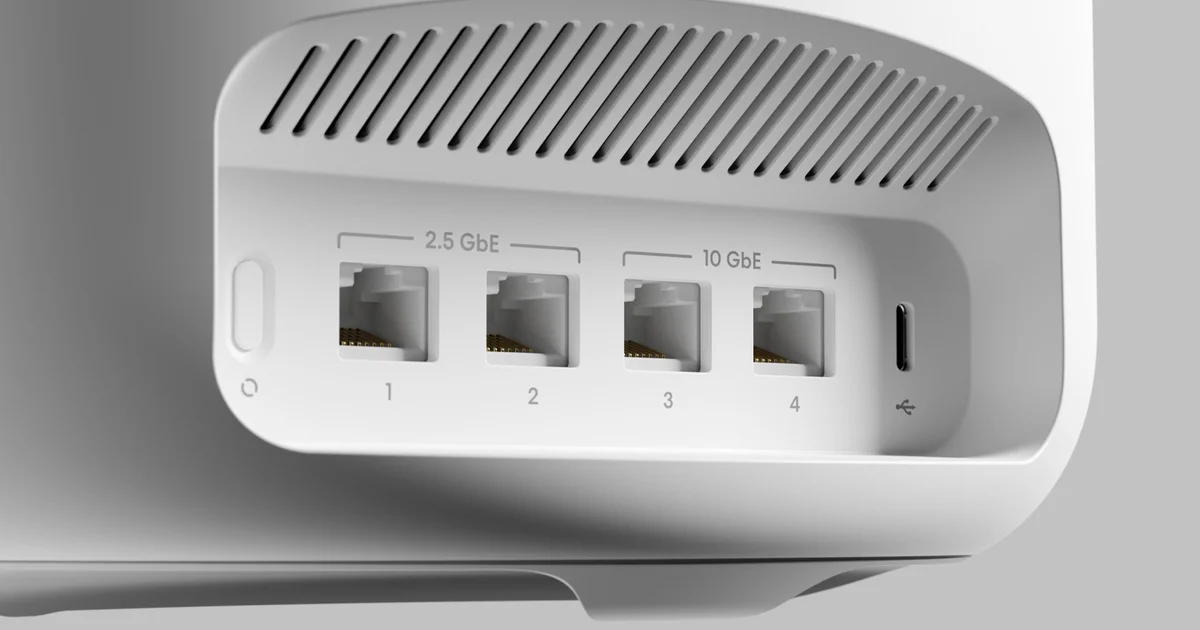
Luckily, Zen arranged for the Pro 7 to be sent to me so I could compare the two. The WiFi 7 model is clearly worth the extra £240 (£10 x 24 months), especially because it costs £600 on its own. Along with higher maximum wireless speeds, it also includes—in my view—enough Ethernet ports for multi-gig broadband: four ports total, with two rated at 10-gig and the remaining pair at 2.5-gig. With this layout, you can dedicate one of the 2.5-gig ports to the incoming internet connection while keeping two 10-gig ports available for extremely quick local transfers—for example, pairing a gaming/work PC with a NAS.
Everything is laid out in a clear, intuitive way and it’s easier to move through than typical router software—though it’s annoying that you can’t manage it via a web browser when you’ve left your phone elsewhere. Apple Silicon Macs can at least use the iPad version of the app. | Image credit: Amazon/Digital Foundry
Both Eero routers were new territory for me in another respect: they don’t offer setup through a web browser. Instead, the configuration is done via an Android or
This approach makes several parts of the process much simpler: the initial setup is both uncomplicated and quick, and it’s especially useful to be alerted when new devices join your network. Still, compared with many more traditional routers I’ve used over the years, you do get fewer configuration choices. In the end, I’ve never felt the need to rely on those extra, higher-end features, and I also haven’t seen a reason to install custom firmware.
firmware, though it’s worth noting that the overall configuration is far more tightly limited than what you’d get from a typical TP-Link, Asus, or Netduma router. Of course, there are plenty of other WiFi 7 routers available that I haven’t tested myself, so it’s wise to do your own homework there.
Maximizing a multi-gig connection
Once my router situation was sorted and my speed tests consistently showed 1.6Gbps download, 110Mbps upload, and a 7ms ping, the next step was figuring out what I’d actually do with all that headroom. Yes, you can grab an entire 845MB Nvidia graphics driver in about four seconds, but a 900Mbps connection would do it in roughly seven seconds—so really, what’s the rush?
The real payoff shows up with much larger downloads. The current Digital Foundry CPU benchmark suite is a bit over 1.3TB, which means that drops from around 3 hours and 15 minutes down to 1 hour and 48 minutes. That’s a meaningful improvement—especially on embargo day, when you may have to redo every test for a particular CPU in your lineup, only to find the SSD you were counting on suddenly won’t start, forcing you to reinstall quickly on another drive… go on, ask me how I know!
You too can put an end to the “didn’t-download-Warzone-patch-and-now-all-my-friends-are-waiting” problem for good. Of course, you could also just log in 10 minutes early…
Beyond that, you really do need multiple devices to get the most from a multi-gig connection—and ideally, a few housemates or family members who prefer downloading their content rather than relying on streaming, since even a 25Mbps link is enough to watch 4K video. Just like the RTX 4090 solves the bottleneck in rasterized rendering, a connection with this level of bandwidth effectively fixes the multi-user streaming issue. You’d need a fairly large household before any slowdowns become noticeable, and most of the time you’ll run into the limits of the servers you’re downloading from instead of your connection.
Distributing the load: multi-gig switches
Some routers, such as the Eero Max 7, include plenty of Ethernet ports, but others like the Eero Pro 6E don’t—so you’ll probably want a second router or an unmanaged switch to let multiple devices draw on the full capacity of a multi-gig connection. It won’t come as a surprise that I have around a dozen computers in my office in various states of “repair,” so adding a switch was the most practical way to keep several devices online at the same time without leaning on WiFi—a convenience that isn’t available across all of our test setups.
D-Link kindly supplied the DMS-106XT, an unmanaged gaming-focused switch (we know it’s for gaming because it includes an RGB light bar and a sleek, wedge-style body). It’s genuinely the nicest switch I’ve used, and since it’s unmanaged, it works without any setup steps: simply connect your router or NAS to the 10-gig link, then plug up to five additional devices into the 2.5-gig ports, and you’re good to go.
This photo doesn’t highlight the RGB light bar on the front, but it’s still a really attractive piece of hardware. On the rear, you’ll find one 10-gig port, five 2.5-gig ports, a turbo mode switch, an RGB on/off control, and a barrel power connection. | Image credit: D-Link
There are a couple of other straightforward, “set it and forget it” controls as well. On the back there’s a turbo mode switch that enables port-based priority: ports one and six can effectively take as much bandwidth as they want, even if that means other devices lose out; port two gets the next level of priority, and the remaining ports make do with whatever bandwidth is left. There’s also a button that lets you disable the RGB lighting if you’d rather keep things more subtle.
For the past few months, the switch has run quietly and reliably, and with sale pricing sometimes dropping as low as £105, it’s a pretty sensible buy for the 22.5 gigabytes of potential throughput you’re getting.
Multi-gig and gaming routers: Netgear XR1000 and Netduma R3
This is what a gaming router looks like: the Netduma R3.
I also considered adding a couple of secondary routers to see whether they were worth looking at alongside the Eero, but I ultimately didn’t go that route. The Netgear XR1000 is a model I’ve been using since 2022, and it includes some distinctive gaming-focused features, such as a ping heatmap that blocks access to underperforming or far-away game servers—so your Counter-Strike matches are more likely to hinge on you and your teammates rather than network problems. It also comes with a strong Quality of Service (QoS) setup that prioritizes gaming and other real-time traffic over downloads, helping prevent bufferbloat, where your connection to a game server can become unstable once someone starts downloading something.
The Netduma R3 takes the same overall idea even further, built specifically as a gaming router with extra features like “Hybrid VPN”—an easy way to connect multiple devices to an OpenVPN or WireGuard VPN—plus an ad blocker and “Steady Ping,” which keeps your ping consistent, in much the same spirit as capping your game at a set frame rate. These are all worthwhile additions that deliver as promised, and they’re also easier to access than on the XR1000 thanks to a more modern interface.
These screenshots from the mobile app give you a preview of what to expect– a desktop-class browser version is also available if you’d rather. | Image credit: Netduma
Still, the R3’s hardware doesn’t seem quite as quick or consistent as the XR1000 it’s meant to replace. In my testing, the wireless signal level and throughput were clearly weaker—most likely because the R3 is an AX3000 model, while the XR1000 uses AX5400. It also omits USB support that the XR1000 includes, meaning you can’t use it for network sharing. Finally, it won’t handle PPPoE sessions above a certain threshold (500Mbps), which curtails what it can ultimately deliver.
particularly a poor fit for high-speed Openreach lines in the UK. Of course, you can pair it with your ISP’s router to work around that restriction, but it’s annoying when you’d prefer a single-router setup. And with only gigabit ports available, you can’t fully take advantage of a multi-gig connection.
This Dongknows review is a bit dated, yet it matches much of what I’ve experienced with the R3: an exciting idea that never quite reaches its full potential. The unit continues to get firmware updates, so it’s still worth considering if multiplayer gaming is a priority. I just hope we eventually get an R4 that brings WiFi 6E or 7 plus some higher-end specs—it would make a great match for a multi-gig connection down the line.
The Eero app doesn’t include advanced gaming options, but the single “optimize for conferencing and gaming” switch does a solid job of lowering bufferbloat.
On the bright side, the Eero routers provided by Zen include the most important gaming-related piece—a dependable QoS setup, called “Optimize for Conferencing and Gaming” or “SQM.” When I enabled it, my bufferbloat dropped to figures comparable to what I saw with the Netduma R3, which is good enough for my needs—though I do still miss a few of the DumaOS ping geofencing tools.
Conclusion
So, is moving to multi-gig internet worth it? For me, yes. It has made a meaningful difference to my day-to-day work, helps me download Call of Duty updates with far less hassle, and means I don’t worry about guests or family members slowing my downloads or interrupting a gaming session. There’s plenty of bandwidth for everyone to use. I’d still rather have a symmetric setup with much higher upstream capacity—the uploads for those YouTube videos won’t complete themselves!—but for now, this is the strongest option in the UK, besides a handful of relatively uncommon community fibre projects.
Would I recommend it to the average person? Not really. I had no issues with the 900Mbps connection I used before, and in terms of value, only people with the heaviest internet usage should consider gigabit speeds, let alone anything above that. If you’re in a similar situation and your work is heavily online—where faster speeds genuinely make life easier—then it’s easier to justify, though it’s still something of a premium purchase. That’s especially true because the quicker download rates don’t bring higher upload speeds compared with 900Mbps connections.
Besides the not-insignificant cost of the internet service itself, it’s also worth thinking about what you may need to buy along the way to get the most from your new speeds: updated motherboards and laptops, improved WiFi 7 routers and switches, and higher-end smartphones. Among those options, the D-Link DMS-106XT switch is an easy choice if you want to distribute a high-speed connection across several wired devices. Meanwhile, the Eero Max 7 and Netduma R3 are both strong router picks that are at least worth putting on your radar.
And, of course, there’s always something even quicker on the horizon. Vodafone is promising 2.2Gbps speeds—including 900Mbps uploads if that promotional image is correct—while Openreach has also announced 1Gbps symmetric options for selected areas. Image credit: Vodafone
Alongside assessing this particular connection speed, I also left with a positive impression of both Zen, my new ISP, and Eero, my new router system. Zen’s support has been noticeably more personable, quicker to respond, and more authentic than what I’ve experienced from larger providers like BT and Virgin, and I’d happily recommend them to anyone in the UK. For multi-gig connections in particular, I do find it a little strange that they’re still offering the Eero Pro 6E; they should move to the Eero Pro 7 with its dual 2.5-gig ports once it launches later in February.
Amazon’s Eero routers have also been something of a pleasant surprise. I’m not especially keen on giving up control to manage firmware and similar settings, but the feature set available works well, and keeping an eye on connected devices or adding new routers is extremely straightforward. While there are certainly cheaper WiFi 6E / 7 alternatives, these routers live up to their reputation for being easy to handle.
I think that covers pretty much everything, so I’ll finish by saying I’m keen to hear what you think about multi-gig internet in the comments below. If you have any questions about the situation overall, I’ll do my best to reply.