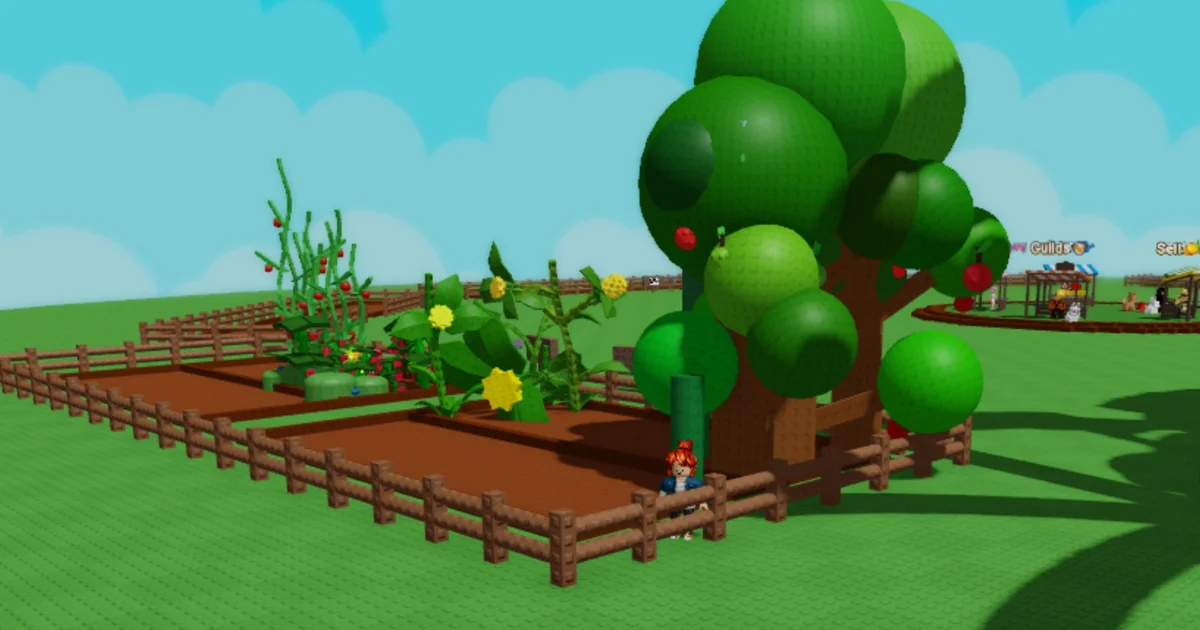
Learning how to set fruit as a favorite in Grow a Garden 2 can help you avoid accidentally trading it away to Steven while you’re clearing out your other items. It may sound funny, but it’s easy to regret it when you sell off your prized Dragon’s Breath before you’ve even secured a better offer. With that in mind, here’s how to mark and unmark fruit as a favorite in Grow a Garden 2.
How to mark fruit as a favorite in Grow a Garden 2
In Grow a Garden 2, you can mark fruit as a favorite by right-clicking it in your inventory. This can be done using the quick inventory bar along the bottom of your screen, or by opening your backpack with the backpack icon in the upper-left corner.
Once you right-click a fruit, a star will appear next to its picture in your inventory. That star marks it as a favorite fruit, and it will stay in your inventory until you decide to remove the favorite tag.

How to unmark fruit as a favorite in Grow a Garden 2
To unmark a fruit, right-click it again directly in your inventory. That’s all there is to it—no extra steps or hidden actions. After the star disappears from beside the fruit’s image, it’s no longer marked, and you can sell it or handle it however you like.
If you’d like more help with Grow a Garden 2, you may want to take a look at our pets list or our roundup of Grow a Garden 2 codes.