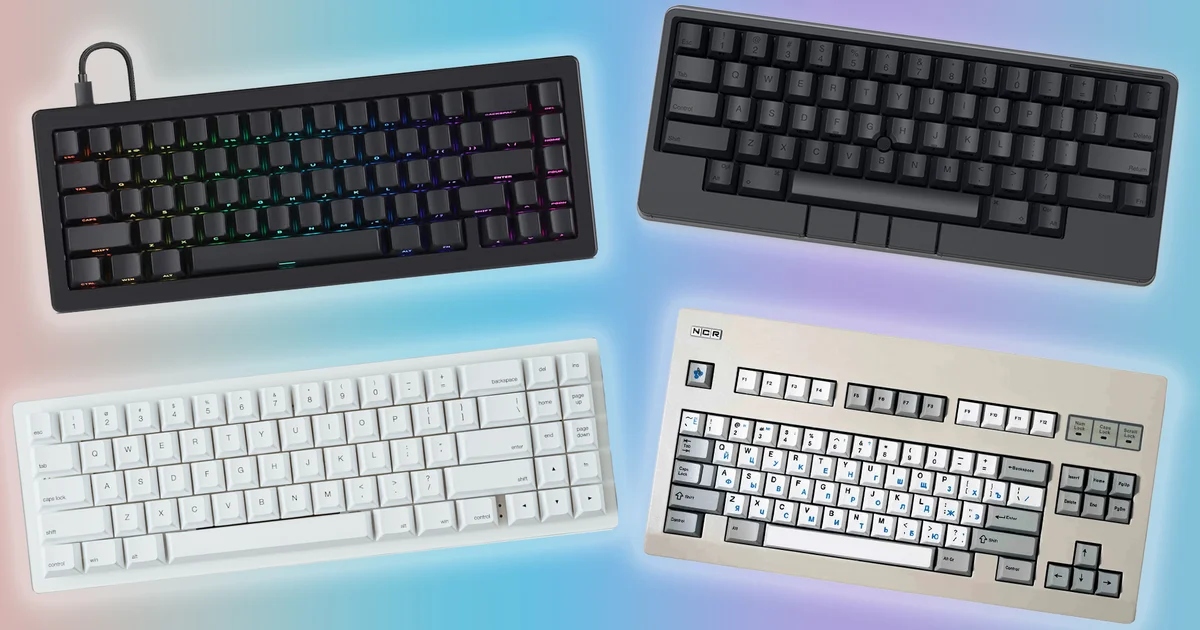
Well, we’ve reached December, and the temperatures here in old England are hovering close to freezing. With the cold weather setting in, I’ve decided to stay indoors and spend some time revisiting more keyboards—this round with compact picks that are genuinely worth a look. Yep, I really am a geek.
With that in mind, here are three models plus one wildcard to mull over: everything from a highly configurable 65 percent option to a board built around my preferred layout, with a few distinctive tweaks, and another 65 percent model that brings back a memorable custom idea from a decade ago.
Drop CSTM65 review: A compact model with a hot-swappable top

Purchase:
First on the list is the Drop CSTM65, and the name spells it out—this is a custom 65 percent keyboard. It brings the benefit of a smaller footprint, giving you extra space on your desk and matching what’s popular right now. On top of that, it includes the appeal of a hot-swappable plastic top case. You read that correctly: the CSTM65’s upper shell comes off easily by lifting the case upright, which exposes the metal components underneath. My review unit arrived in black, paired with the Overgrowth decorative case ($35). You can swap that accessory in seconds. It completely changes how the keyboard looks, and it’s also a clever, budget-friendly way to refresh your setup without having to buy an entirely new board.
You’ll also notice some attractive design touches on this fully assembled version, including side-printed ABS keycaps. From the top, they’re blank—so you’ll need the discipline of a confident touch-typist—but if you’d rather have printed legends, the keycaps can be changed out for standard ones. These are ABS caps, which feel a bit less refined than the PBT I tend to prefer, though they still deliver a perfectly solid typing experience.
For connections, it relies solely on a USB-C to USB-A cable included in the box. Inside the pre-built CSTM65, you’ll find either Gateron Yellow KS3 linear switches or Gateron Brown Pro 3.0 soft-tactile switches, depending on the configuration. My sample used the latter. They’re a fair swap for MX Browns, although the tactile bump isn’t quite as sharp or noticeable. Additionally, the lubricated switches have the downside of slightly muting the tactile feel. So they’re nice for everyday typing and occasional gaming, but if you want something different, you can swap them out easily thanks to hot-swapping support, using 3- or 5-pin mounted switches.
The sound profile is another strong point here. With the lubricated switches, the polycarbonate case, and the internal structure, the whole setup is rounded out further by the sound-dampening foam built into the CSTM65. There’s no annoying case rattle or sharp ping, and it comes through with a really pleasing tone. The RGB lighting is bright, and when paired with the side-printed keycaps, it definitely lifts the keyboard’s overall look. It’s also addressable: the CSTM65 supports QMK firmware flashing as well as VIA, Drop’s own online configurator, where you can flash firmware straight to the keyboard. It can be a little fiddly, but it opens the door to serious customization.
In its pre-built form, the Drop CSTM65 costs $129. For a mechanical keyboard with this degree of configurability, that’s genuinely good value. Not many boards offer this much modularity without asking you to spend significantly more—and if that’s what you’re after, it’s an excellent option.
WhiteFox Eclipse review: Bringing life back to one of the most important custom keyboards from ten years ago
Purchase:
The WhiteFox Eclipse might not be the first keyboard people think of when talking about some of the most influential boards in history. Those conversations typically revolve around the IBM Model F or M (and often mention their well-known clones). Still, I’d argue—much like Alpaca Keyboards (the team behind the WhiteFox Eclipse) would—that Matt3o’s Brown Fox deserves a place in that discussion.
Here’s why: the WhiteFox Eclipse is a modern reinterpretation of one of the early custom keyboards built entirely from scratch by a mechanical keyboard enthusiast community member—specifically, Matt3o on Deskthority. If you’ve been around the scene, you may recognize Matt3o—he worked with Drop/Massdrop on a series of keycap designs, several of which are still available today. Back in 2013, he set out to create a custom keyboard from the ground up. He chose a laser-cut acrylic case, hand-soldered plate-mounted MX switches (MX Blues for the main keys, MX Red for the arrow keys, and MX Green for the space bar), an aluminum plate, and matching brown keycaps—calling the project the Brown Fox.
As a result, the keyboard launched in partnership with Massdrop and Input Club in 2015, with a few adjustments, and it was branded as the WhiteFox. At the time, it became the most-backed keyboard on Massdrop, and it helped popularize a version of the 65 percent layout that later turned into a go-to favorite for many enthusiasts. The story picks up a couple of years afterward, when Alpaca—formed by former members of Massdrop’s mechanical keyboards team—decided to develop a fresh take on the WhiteFox keyboard. After several years of work, the WhiteFox Eclipse finally arrived on the market.
The new Eclipse shares a number of visual cues with the original WhiteFox from Massdrop—most notably its clean white finish and the similar ‘TrueFox’ 68 percent…
layout, including a navigation cluster and arrow keys placed on the right side, along with the same Cherry profile dye-sub PBT keycaps. So the keyboard
…a look that’s visually striking and markedly modern.
I’m using the plastic-cased model, though it also comes in an aluminum housing, much like the Massdrop version. It’s fairly sturdy, even if it shows a bit of give when you press down firmly. Out of the box, the WhiteFox Eclipse is built as a tall, flat keyboard, with a thick case and full-sized switches. That design can make it a little awkward to work with unless you raise it to a more comfortable typing angle. Because of that, I especially like the magnetic feet packed in the box.
In the earlier Massdrop release, the WhiteFox came with a wide selection of switch choices. Across the range, you could pick from 11 different options, featuring many of the most popular picks among Massdrop buyers at the time. Common selections included Cherry MX Red, Blue, and Brown, plus Gateron’s equivalents, along with rarer MX lineup options such as MX Green, Clear, and White. You could also choose Gateron Green and Clear switches, as well as Zealios switches—Gateron’s gentler tactile takes—offering a similar feel to MX Clears, a higher actuation point, and a claimed smoother keypress.
For the Eclipse version shown here, the choices are much more straightforward. This model ships with pre-lubed Gateron Yellows: 50g linear switches designed for an especially smooth typing feel. Unlike some earlier Gateron options, these deliver a consistent, responsive keystroke—something that felt especially good when writing long articles. The lubrication also improves the sound profile, supported by the thick poron foam inside the case that helps reduce noise. If you’d rather use something else, though, the WhiteFox Eclipse supports hot-swapping. That’s one of the main improvements over the Massdrop model.
It’s also gasket-mounted, which is now common across many prebuilt mechanical keyboards and gives the keys a slightly springier, more lively response than you’d typically get elsewhere. In practice, this design clearly benefits the Eclipse and makes the overall typing experience more enjoyable.
Connection is handled via Bluetooth, with support for up to three devices. Switching pairing per channel is done by pressing Fn along with Q, W, or E, depending on the channel you want. The WhiteFox Eclipse works with both Windows and macOS, and in my testing it performed smoothly on both platforms. macOS users get Mac-specific keycaps in the package, along with blue-colored and Fox-accent keys to match the original theme—plus a keycap and switch puller, a double-ended spudger for reaching internal parts, and a high-quality braided USB-C to USB-A charging cable.
Alpaca lists the WhiteFox Eclipse’s 4000mAh battery life at around 90 hours per charge. That’s strong enough that you can comfortably go for a couple of weeks before you’ll need to plug it in. Importantly, the stated 90-hour figure applies even with the RGB lighting turned on. If you switch off the lighting, the runtime can stretch to as much as 10 days.
There’s no extra software included, and customization is limited to changing the RGB lighting modes through a set of keyboard shortcuts. There are several effects to choose from—most show rainbow colors in slightly different patterns—though some are limited to red and white, or to a different shade of blue. You can adjust the patterns with Fn and M, and you can cycle through colors for the selected pattern using Fn and K. While single-color backlighting is available in these settings, it isn’t as quick or convenient as it would be with dedicated software.
The WhiteFox Alpaca feels like a noteworthy update to the original, adding modern functional improvements to one of the most important custom keyboards from the last decade. Even if the market has shifted since the first release, it’s clear this revamped version still feels relevant in 2024.
HHKB Studio review: The iconic Japanese keyboard returns, albeit with a completely new design
Buy:
For the past 18 months, I’ve been using an HHKB Professional Hybrid Type-S—one of our favorite compact keyboards—on and off. The HHKB on its own is a pricey Japanese cult favorite, celebrated for its electro-capacitive switches (which are unlike anything else) and its unconventional layout. The HHKB Studio is PFU Corporation’s effort to bring an in-house HHKB to the wider mechanical keyboard crowd—so let’s break it down.
Compared with the standard HHKB models, this new Studio version has two big changes, starting with the switch selection. Instead of using the classic Topre electro-capacitive switches, the Studio swaps them for silent linear switches from Kalih, with a 45g actuation force. They surprised me with how smooth they were to type on and how responsive they felt for everyday tasks—though I still lean toward the electro-capacitives in my usual HHKB. The electro-capacitives land with a more distinct keypress thanks to their tactile character, which is more subdued in the linear switches used in the HHKB Studio. That said, the Kalih switches are fantastic for office use and are extremely quiet.
The second major difference from the standard HHKB is the addition of a trackpoint placed in the middle of the alphanumeric section.
keys. The trackpoint is recognizable for its presence in the sea of IBM
and Lenovo ThinkPads from the 1990s up to today, along with other laptops from that same era. Lenovo patented this approach back in 1997, and once that protection lapsed, it started showing up in a range of other devices—such as the HHKB Studio. In short, it’s a pointing stick that lets you move your mouse cursor without needing to use a conventional mouse.
It does take a bit of practice, and you’ll want to be fairly precise with it, but the trackpoint is a genuinely useful addition to the HHKB Studio’s feature set. You’ll also find gesture pads positioned near the bottom of the Studio, making actions like scrolling easier, plus dedicated mouse buttons under the spacebar for left, middle, and right clicks. It’s an interesting touch, and I ended up using it more frequently than I expected at first.
Alongside the trackpoint, the HHKB Studio includes another set of standout gesture pads. These let you use the edges of the keyboard’s frame for tasks such as changing volume or scrolling through a webpage. It’s certainly a distinctive feature, though it’s not one I leaned on very much, largely because it felt unfamiliar compared with a standard rotary dial.
Before we go further, it’s worth calling out the HHKB layout, which can feel a little unconventional. That design is the product of collaboration between Japanese computer scientist Eiiti Wada and PFU Corporation, the Japanese firm responsible for the HHKB. Wada was aiming for a layout that could support the different operating systems and computers he used in the mid-1990s. The result is an especially comfortable layout, with a few small but helpful changes—like moving the Ctrl key to the spot usually taken by Caps Lock, so your fingers don’t have to travel as far for frequent actions such as Ctrl+C and Ctrl+V. They also removed the key positioned between Backspace and Enter to make reaching both keys simpler, and shifted the Function key to a row above where it typically sits on a regular keyboard.
The HHKB Studio works smoothly with both Windows and macOS, though it includes macOS keycaps by default. By the way, the dye-sublimated PBT keycaps included here rank among the best I’ve tried. There’s also multi-point Bluetooth, letting it connect to as many as four devices at the same time, and pairing is easy thanks to a key combination. Still, there’s no USB receiver support—though having Bluetooth is arguably the more convenient option. I personally didn’t run into any problems.
The included software, HHKB Studio Keymap, lets you remap keys and assign actions to the dedicated buttons, including turning on the gesture pad functions with a modifier key. You can also set up multiple function layers, giving keys a lot of flexibility. While it may not match VIA in sheer power, the software is still quite capable. The main limitation is that you need to have the HHKB Studio connected while changing things, so if you want to remap keys, you’ll have to grab the cable.
Now, let’s talk about the price—though you may want to steel yourself first. The HHKB Studio costs £325/$329, which is pretty high for a niche keyboard. I’d only really point you to it if it’s exactly what you’re after. I happen to like the HHKB Studio, but I also see myself as part of its target audience. For others, if you want the HHKB experience in terms of layout, but with more customization possibilities, it could be a good fit. Otherwise, I’d recommend going with a more “standard” HHKB. You’ll probably thank me later.
Wildcard: NCR-80 R2 review: A DIY keyboard kit with retro charm
Buy:
In these roundups, I usually toss in a wildcard pick—something a bit more offbeat—for readers who are looking for an even more specialized option than the previous three small-form-factor keyboard choices. With that in mind, let me introduce the NCR-80 R2.
At its core, it’s a TKL mechanical keyboard kit you can purchase in a barebones configuration, complete with a PCB, stabilizers, and a case. It doesn’t come with switches or keycaps, so you’ll need to get those separately.
Given how mechanical keyboard designs have been getting more unusual, colorful, and occasionally over-the-top, the NCR-80 can seem a bit understated. But there’s a reason for that. This beige plastic housing is meant to mimic older Cherry G80 and G81-3000 models from the 1990s, and it does a convincing job. After using plenty of G80-3000 boards—both older ones and newer builds (my first mechanical keyboard, for instance, used MX Blues)—I can say with confidence that the NCR-80 captures the spirit of those models, and it may even top them thanks to an injection-molded plastic frame that has zero flex. It also brings over the G80-3000 look with bright green function lock indicators in the top-right corner, a nice NCR logo on the opposite side, and a label underneath that’s basically “totally-not Cherry.”
Of course, since it’s a newer interpretation, it brings modern benefits too—like a USB-C port for wired use—plus full QMK and VIA support for handling key functions and setting up behavior across different layers. The PCB is hot-swappable as well, so you can use the switches you prefer, as long as they’re 3-pin or 5-pin. Even so, you’ll need to supply your own switches, since the kit only includes the chassis, PCB, and stabilizers.
MechBoards UK sent this along and built it with TTC Golden Blues. I thought it made sense to go with a clicky option to match the loud, nostalgic era that the G80-3000 originally came from in 1988. These are 37g tactile switches with 3.5mm of total travel, so they feel lighter and more responsive than typical MX Blues. I found them pleasant for drafting all kinds of content, and since it’s a lighter switch, they could work for gaming as well if you feel like experimenting. That said, the Golden Blues here complemented the overall feel of the NCR-80 really well, and the included beige keycaps added the perfect finishing touch to the look.
In the future, I could see myself replacing the switches with a spare set of MX Black Clear Tops I’ve kept around. Those come from the newer “official” MX reissue runs that included authentic versions of the MX Ergo Clear community mod, along with the return of the MX Orange. Clear Top Blacks—often called Nixies—were originally made for a run of keyboards produced by Nixdorf in the 1980s, so I think they’d fit this setup nicely. That said, it’s a project for another day.
What makes the NCR-80 appealing is that it doesn’t land in the pricey category of kits. At £120/$90 online, it’s one of the more budget-conscious options I’ve come across, combining a charming retro vibe with practical features and excellent customization, all wrapped up in a great overall package. If you can grab one, it’s absolutely worth considering.
That’s it for today—four reviews of small form factor keyboards I’ve enjoyed testing over the last few months. If you have any suggestions for other products for Will or me to review, feel free to drop them in the comments below, or reach out to us on Twitter @RBithrey or on Bluesky @rbithrey.bsky.social.